
Resources Management
What a resource is in elumo, and how to make it bookable, enable Tap to Book and link the devices that open its door.
A resource is a space at a location that is synced through an integration — a meeting room, desk or similar. Resources are what people book, and elumo controls the access to the attendees of a booking.
Like locations, resources aren’t created by hand in the portal. They’re solely synced in from your integration. This article covers how to find and configure them.
Finding your resources
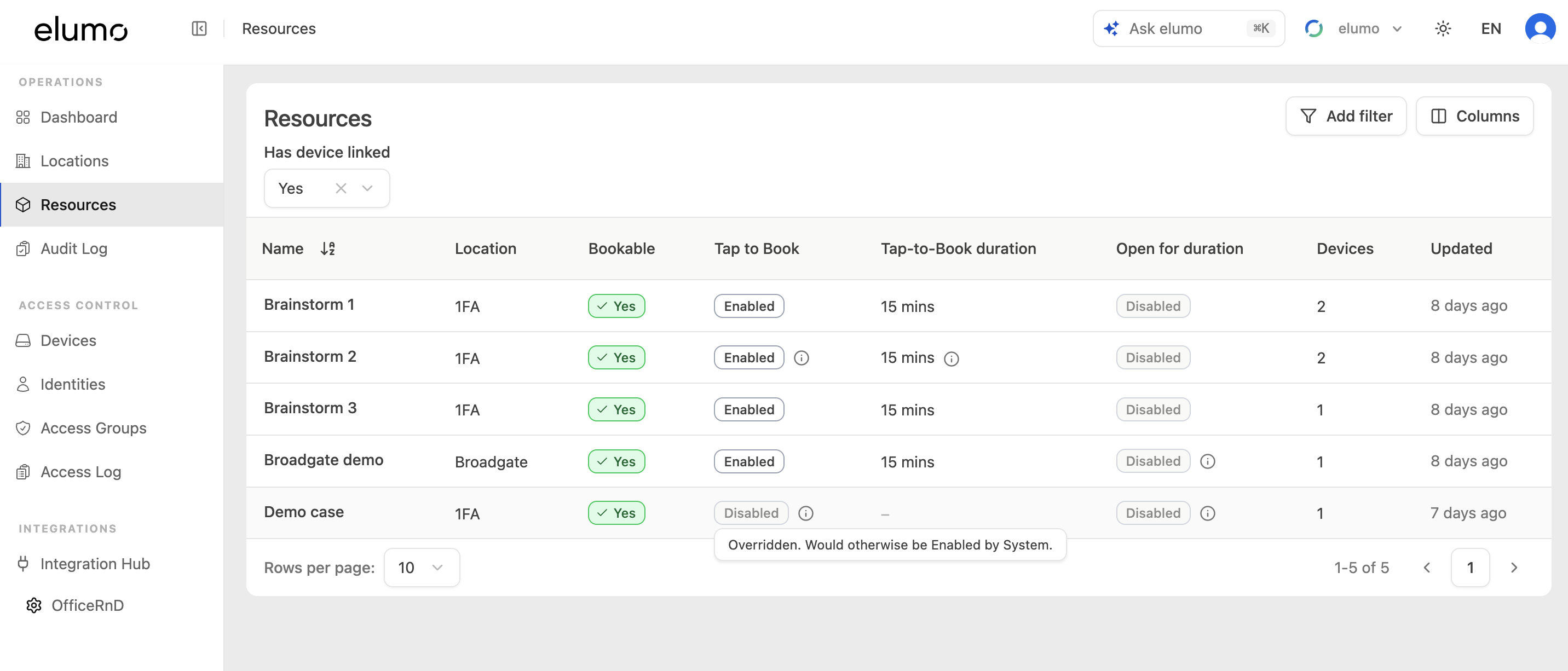
In the left-hand navigation, under Operations, select Resources. The list shows each resource with its location, whether it’s Bookable, its Tap-to-Book status and duration, Open for duration, and how many devices are linked. The list is filtered by default to show resources with a device linked to narrow it to the resources that are likely to be interacting with elumo, but you can unselect this to view all resources, or add alternative filters using the ‘Add filter’ button.
Opening a resource
A resource’s page opens on the Settings & Devices tab, with a History tab alongside.
Booking & access settings
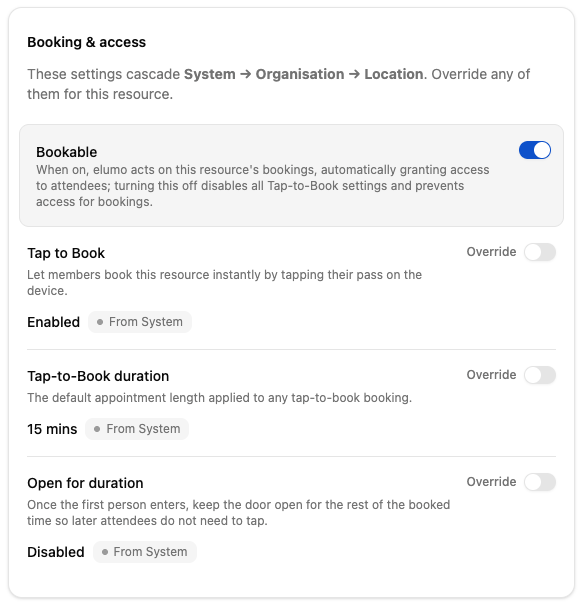
The Booking & access panel controls how the resource behaves. These settings cascade from System → Organisation → Location; turn on Override to set your own value for this resource.
Bookable — when on, elumo acts on this resource’s bookings, automatically granting access to attendees. Turn it off to stop bookings and disable all Tap-to-Book settings, without removing the resource.
Billing: Turning on Bookable counts this resource as a bookable door on your agreement Each location includes a committed number of bookable doors. If making a resource bookable takes you above that committed number, it's billed as a bookable-door overage — any door made bookable at any point during a month is charged for that whole month, at the end of the month. Committed bookable doors are billed annually in advance; overage doors are billed monthly in arrears.
Tap-to-Book — let members book this resource by tapping their pass on one of its devices.
Tap-to-Book duration — the default length of a tap booking, for example 15 mins.
Open for duration — after the first person enters, keep the door open for the rest of the booked time so later attendees don’t need to tap.
Associated devices
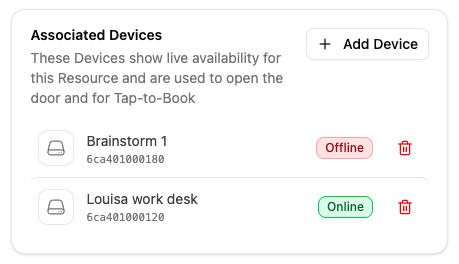
The Associated Devices panel lists the readers tied to this resource. They show the resource’s live availability, open its door, and power Tap to Book. Use Add Device to link one, and the remove icon to unlink. If you add a device that’s assigned to another resource, elumo warns you — adding it here removes it from that resource.
Good to know
A resource always belongs to one location and only appears under it.
Turning off Bookable is the safe way to pause a resource — it keeps the resource and its linked devices but stops access for bookings and Tap to Book.
For Tap to Book to work, the resource needs at least one linked device and Tap to Book enabled (set here or inherited).
Was this helpful?