
elumo - Tap to Book
How do I create an on-demand booking using the elumo device?
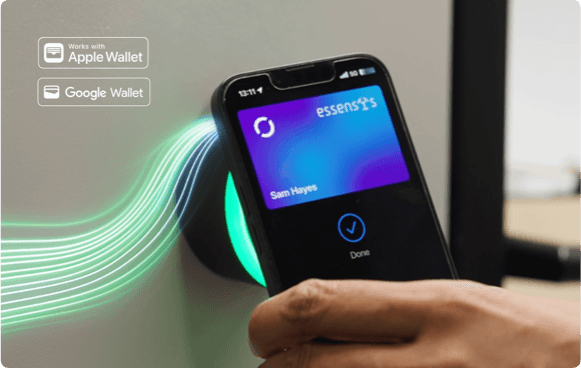
Tap to Book allows you to instantly reserve and access a space by simply tapping on the elumo device installed at the door. This feature eliminates the need to pre-book in the app and provides quick access to available spaces.
When is Tap to Book available?
You can use Tap to Book if:
✅ There is an elumo device installed on the door
✅ The space is bookable
✅ The space is available
How it Works
Check device animation
The elumo device uses a circular clock-style light animation to show availability:
The 12 o'clock position represents the current time slot (right now).
The rest of the circular lights represent the next hour of availability.
Lights progress in an egg timer fashion, showing how much time is left before the space becomes unavailable.
For bookable spaces white indicates the space is available
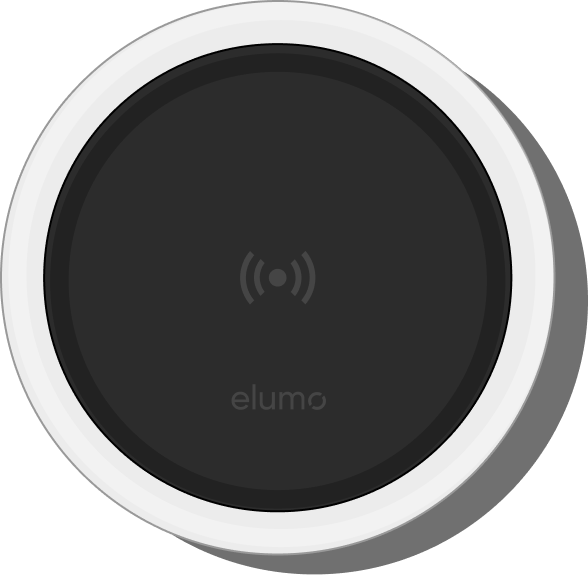
Amber indicates the space is booked.
Tap the device
If the space is available and you're authorised:
The device will flash with a green animation
The door will unlock
A booking will automatically be created in the system with the user listed as the booker
The animation will indicate the time slot reserved for the new booking
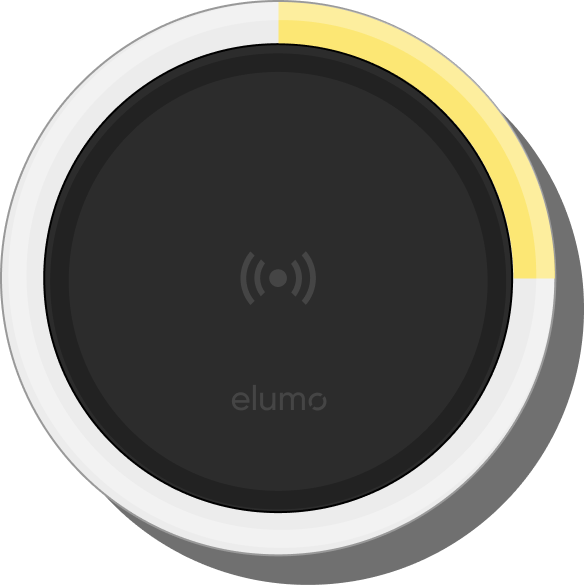
If the space is unavailable or you're not authorised:
The device will flash with a red animation
Access is denied
View your booking
Once created, the booking will appear in the tenant experience app
You can continue to manage the event like any other booking
Booking Rules & Time Slots
The length of a Tap to Book reservation is now configurable. Each space (resource) can be given its own Tap to Book duration, and you can also set a default at the location or organisation level that spaces inherit unless they're overridden. Durations can be set from 15 minutes up to 4 hours, in 15-minute increments. If no duration is configured anywhere, the system default of 15 minutes applies.
This duration is the target length the system tries to give you when you tap. The settings are managed in the elumo portal, so the exact length you receive will depend on how the space you're tapping has been configured.
How the duration is applied
Tap to Book bookings always align to 15-minute slot boundaries:
Your booking starts at the beginning of the current 15-minute slot (the start time snaps back to the previous boundary).
The system then aims to give you the configured duration, rounded to land on a 15-minute boundary.
If tapping partway through a slot would leave you noticeably short of the configured duration (more than half a slot — 7.5 minutes — below target), the booking is extended by one more 15-minute block so you still get a meaningful amount of time in the space.
If an upcoming booking or recurring meeting would clash with the slot you're trying to claim, access is denied.
Examples
Space configured with a 15-minute duration:
If you tap the device at 15:06, your booking will be created as 15:00 – 15:15, giving you 9 minutes in the space.
If you tap the device at 15:12, your booking will be created as 15:00 – 15:30, giving you 18 minutes instead of just 3 minutes left in the earlier slot.
Space configured with a 30-minute duration:
If you tap the device at 15:06, your booking will be created as 15:00 – 15:30.
If you tap the device at 15:12, your booking will be extended to 15:00 – 15:45, so you still get close to the full configured 30 minutes rather than being left short.
In all cases: if the space is already booked within the slot you're trying to claim (for example, a meeting starts at 15:15 and you tap shortly before it), you will be denied entry.
Was this helpful?