
Integration Hub
Connect elumo to your workspace or property-management platform so members, resources and bookings flow in automatically.
The Integration Hub connects your organisation to a workspace or property-management platform so that members, resources and bookings flow into elumo automatically — with no manual re-keying. When someone’s membership changes in the connected system, their elumo access follows.
Only one platform can be connected per organisation. To switch, speak to the elumo team to get your active integration deleted.
Connecting an integration
Under Integrations, select Integration Hub.
On the platform you want, select Connect.
View the required scopes the wizard shows for your platform, then create an API key (or equivalent credential) in that platform and grant it all of those scopes.
Enter the credentials it asks for such as tenant/organisation slug, client ID or API key.
Select Test connection to check the credentials, then Connect.
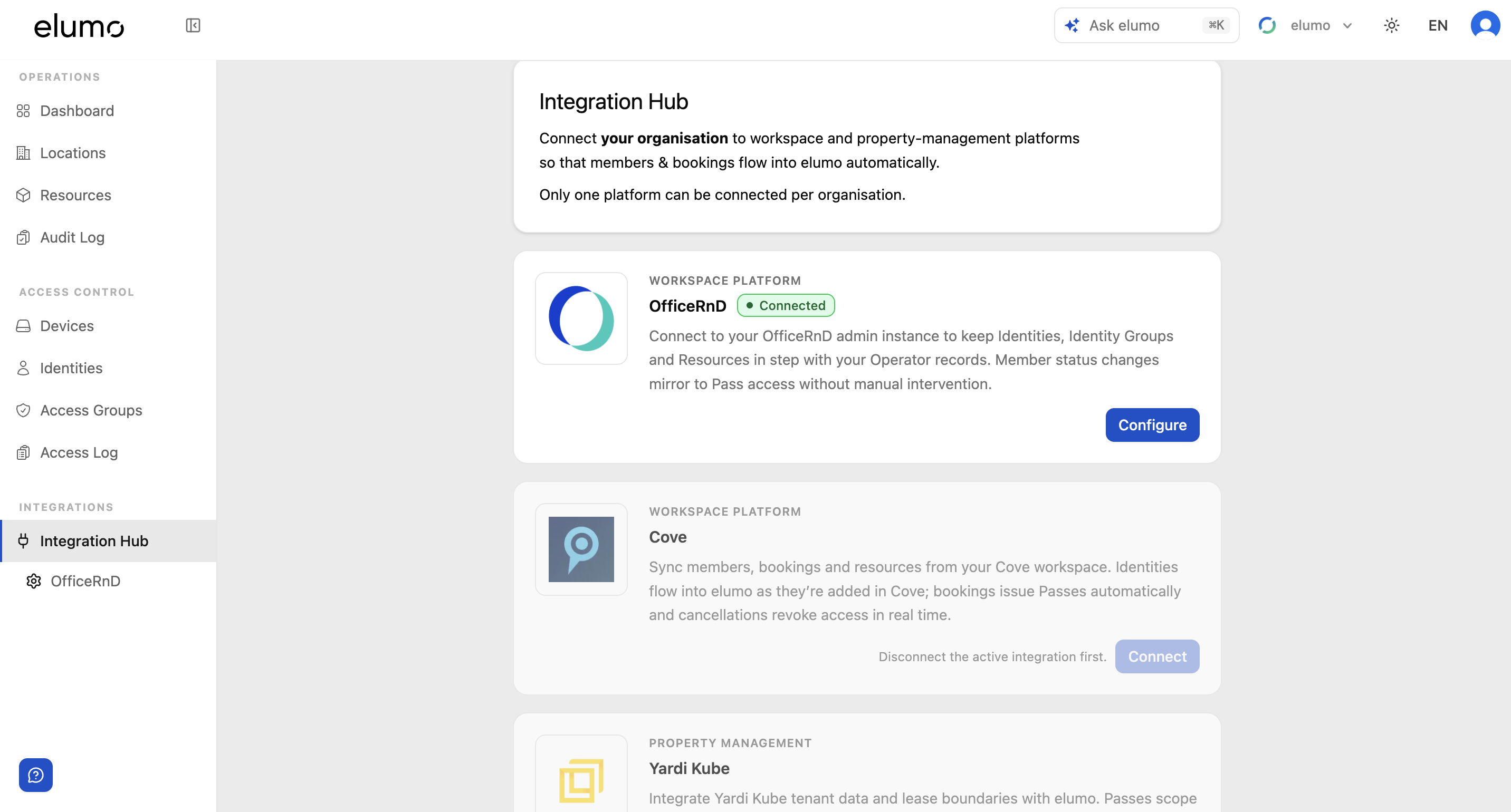
Each integrators connectors will differ from each other, please read all the credentials instructions carefully for your specific platform once you hit the configure button. Some fields — such as the organisation or tenant slug — are locked once the integration is connected.
Mapping locations
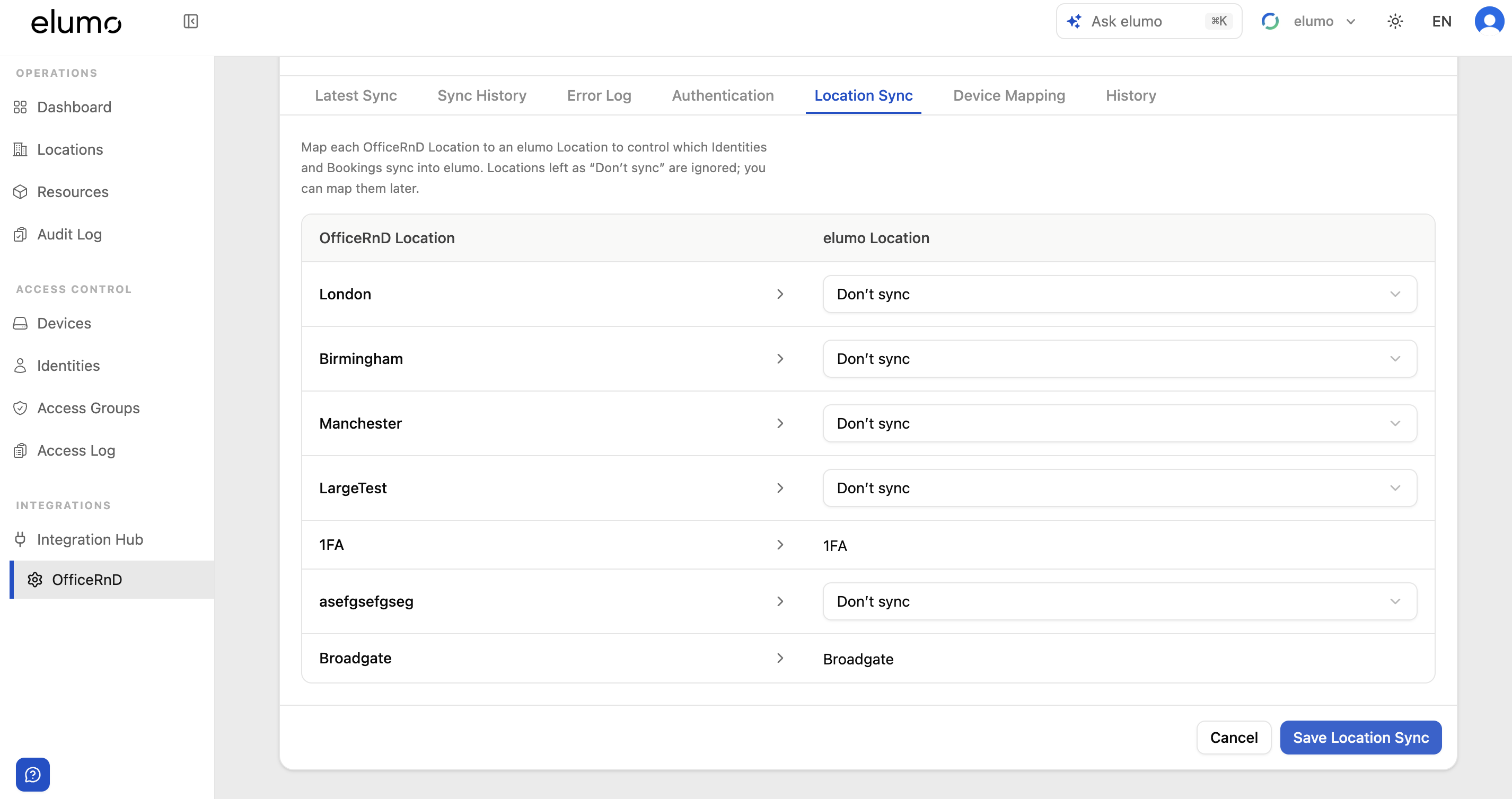
Before data flows in, map your locations. On the integration’s page, open the Location Sync tab and map each external location to an elumo location. Locations left as ‘Don’t sync’ are ignored, so only the locations you map bring in their identities and bookings. Map at least one location before your first sync.
Default location
Each pass counts towards one location's user allowance. For members from locations you haven't connected on your integration, we use the location they booked at, then their company's location. If neither is connected, we use the location you choose here.
Members aren't charged individually. This only decides which location's allowance the pass counts towards.
Mapping devices (optional)
Once you’ve mapped the locations you want to sync, the wizard takes you to an optional Device Mapping screen to finish your configuration. You don’t have to complete it now — you can sync without it and come back to device mapping whenever you need to.
The screen lists every resource at your mapped locations. Identify the ones you’re putting elumo on — one or more — and assign a device to each. Assigning a device gives that resource access through elumo; the Bookable toggle is the distinction that decides whether automated access for its bookings follows too (leave it off for access only). You can search resources or filter by location.
Only resources with at least one device assigned are synced — resources without a device, and their bookings, are filtered out. Your identities sync regardless, so skipping device mapping still brings people across.
Each location’s agreement includes a set number of committed bookable devices, shown at the top of that location’s list with a meter to tell you how many of those you have assigned. You can make more resources bookable than the agreement includes whenever you need to - the extra bookable devices are simply billed monthly in arrears at your plan’s per device rate. The billing impact column shows whether each resource is included or an overage.
Syncing
Syncs run automatically when you’ve either completed the wizard or you have assigned a new resource. You can also trigger one with by pressing the ‘Sync now’ button at any time. A Full sync re-fetches all data from the external system and takes longer — use it if data has drifted out of step. At least one mapped location is needed for a sync to bring anything in.
Managing a connected integration
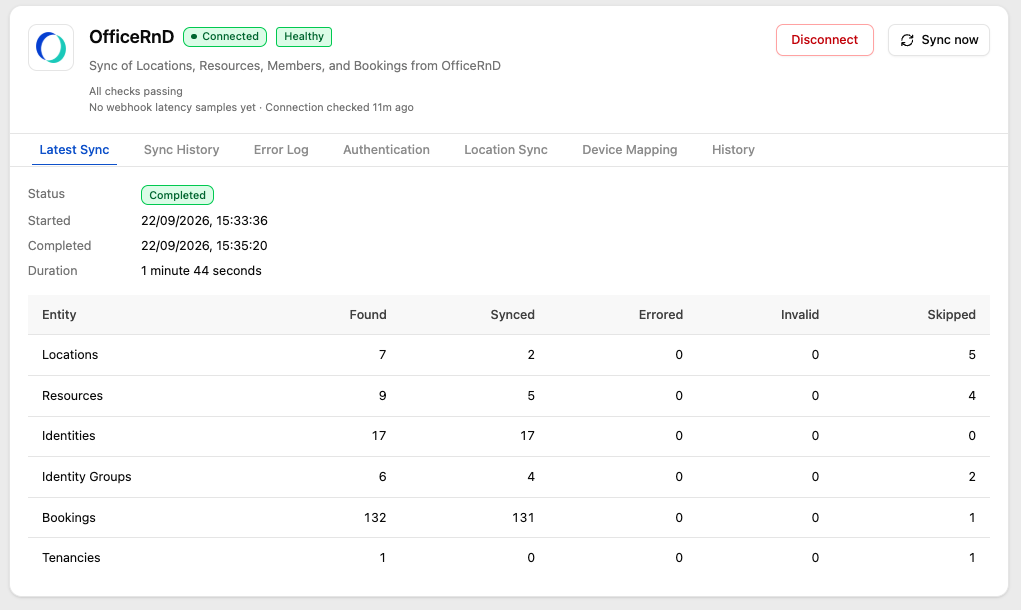
Open the connected integration from the left navigation (for example OfficeRnD) or via Configure on its card. The header shows its status and health, and ‘Sync now’ and ‘Disconnect’ options. Its tabs are:
Latest Sync — the most recent sync’s results per entity (Locations, Resources, Identities, Identity Groups, Bookings, Tenancies), with counts for Found, Synced, Errored, Invalid and Skipped.
Sync History — previous syncs.
Error Log — anything that failed to sync either by a manually triggered process or webhook event.
Authentication — view or update credentials, test the connection, and reconnect.
Location Sync — the location mapping described above. Navigate here to map and sync additional locations.
Device Mapping — map devices to the integration’s spaces.
History — a record of changes to the integration.
Disconnecting or removing
Disconnect stops all syncing and webhook processing; you can reconnect later using the same or new credentials.
Because only one platform connects per organisation, disconnect the current one before connecting a different one.
Was this helpful?